
App
PaperStyle: Digital Notebook
A digital notebook that feels like a physical one — for Mac and Windows.
Each download is a zip file with the installer, a PDF install guide and short install videos. Windows: right-click the zip and choose Extract All, then open the Setup file inside.
Installer only: Mac (.dmg) · Windows (.exe)
Free 14-day trial. No card needed.
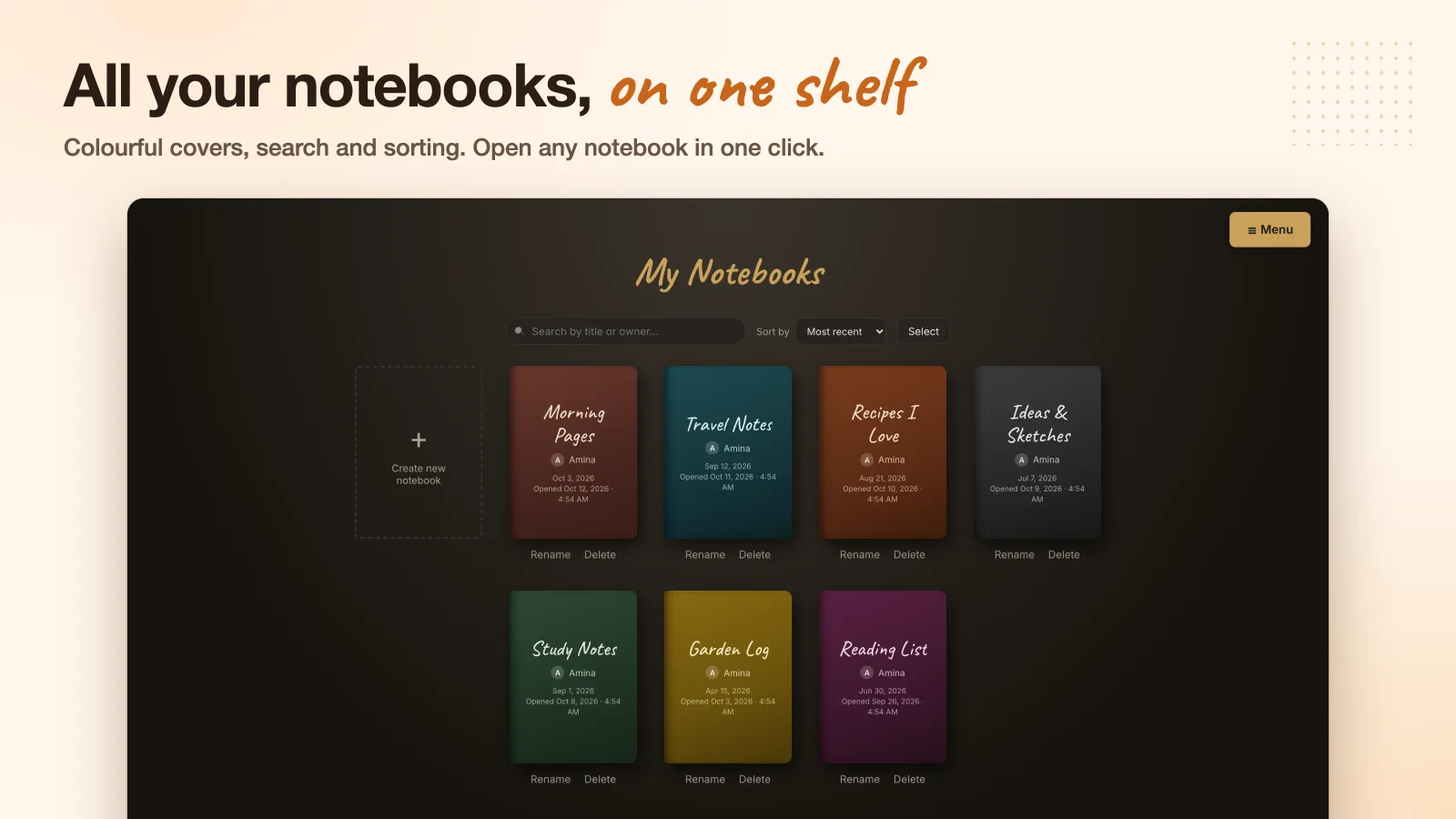
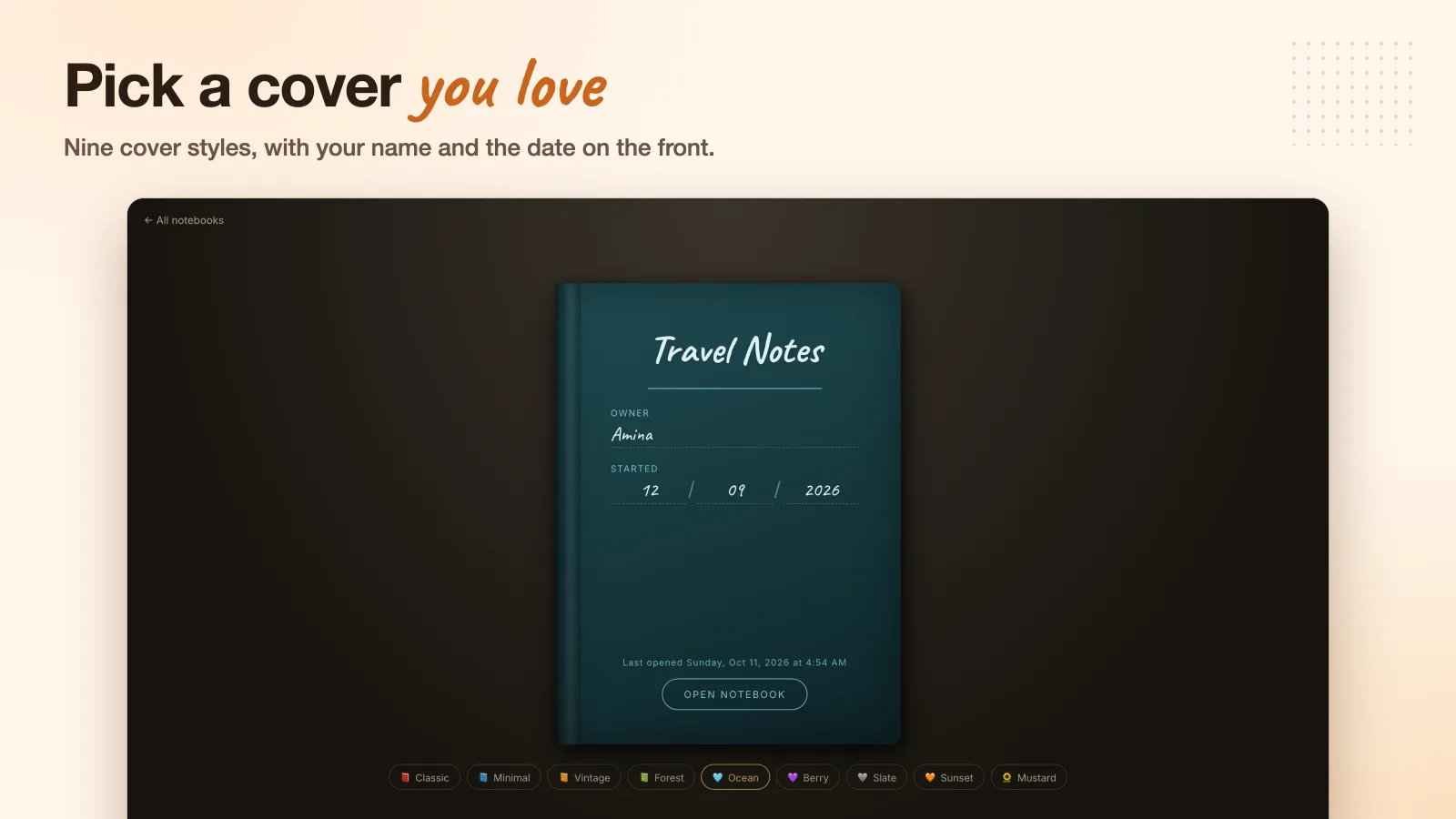
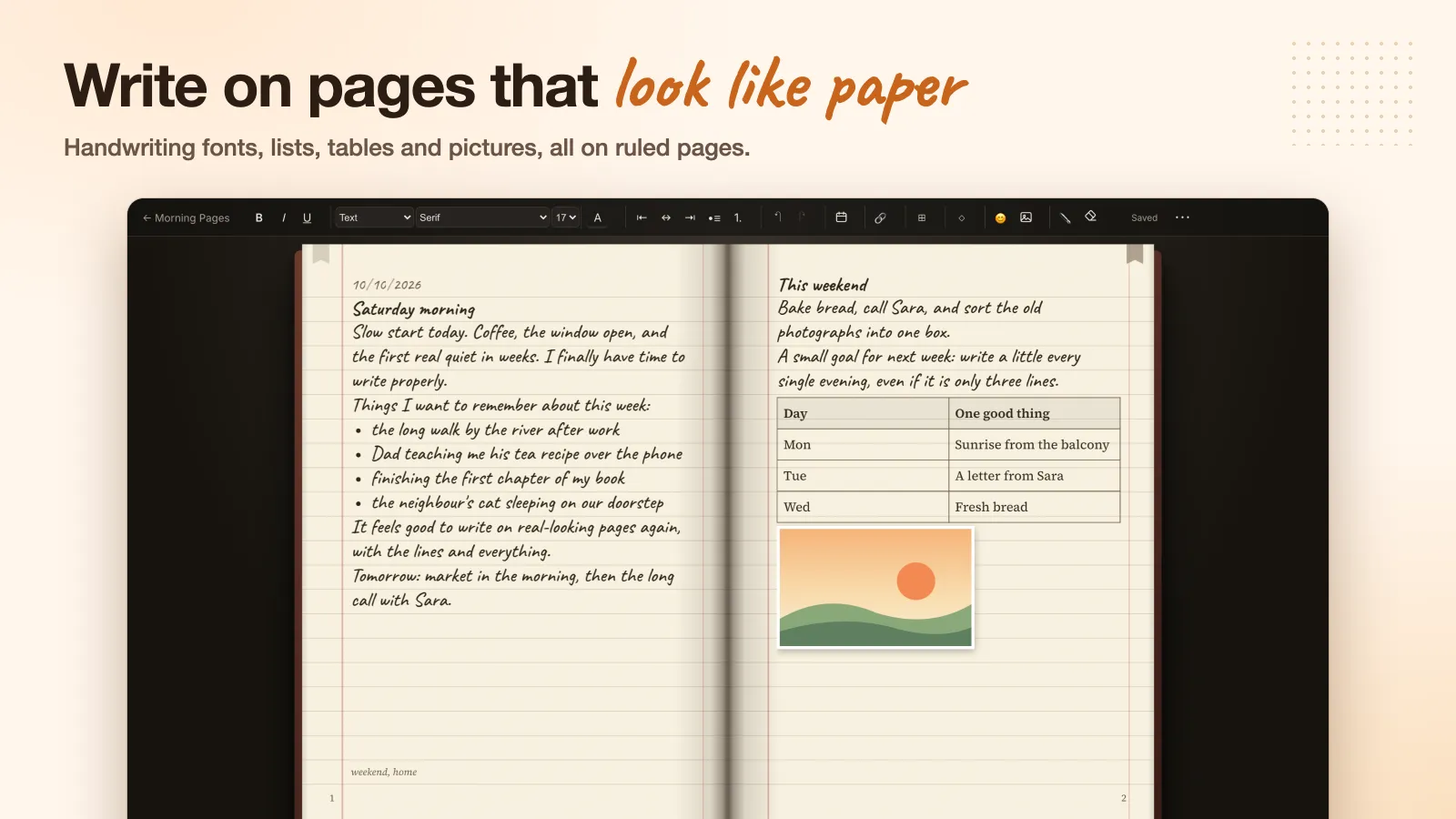
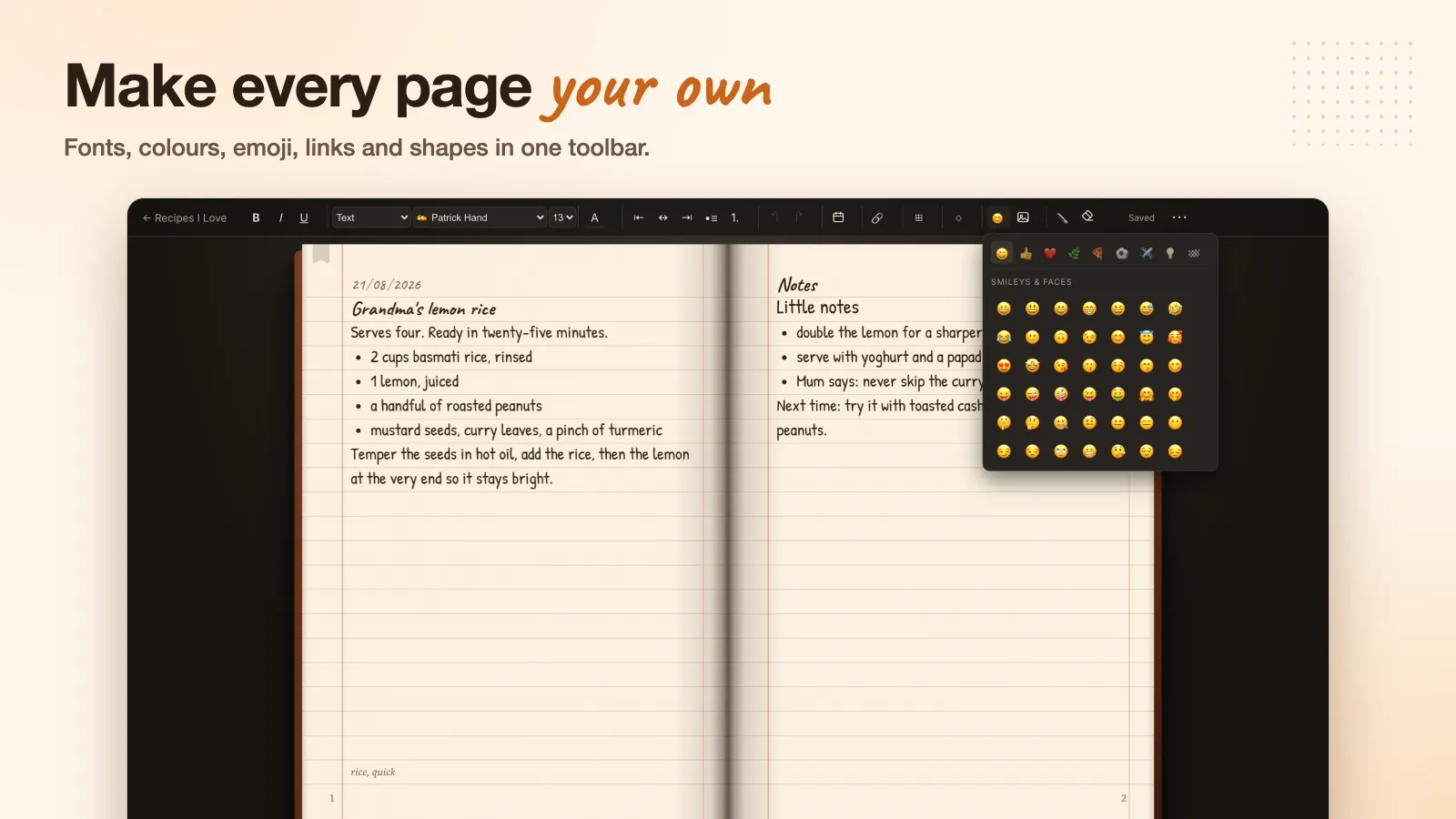
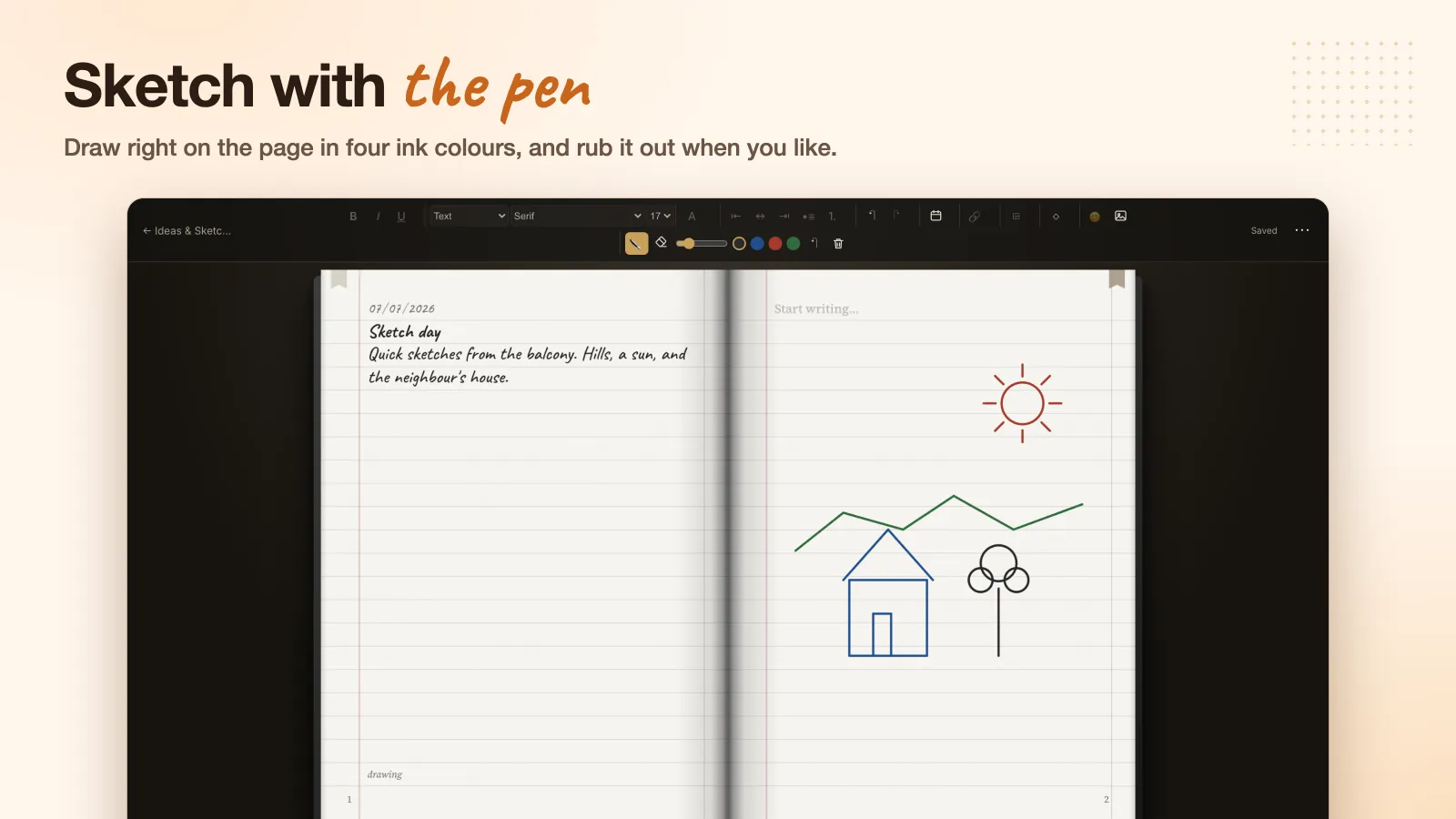
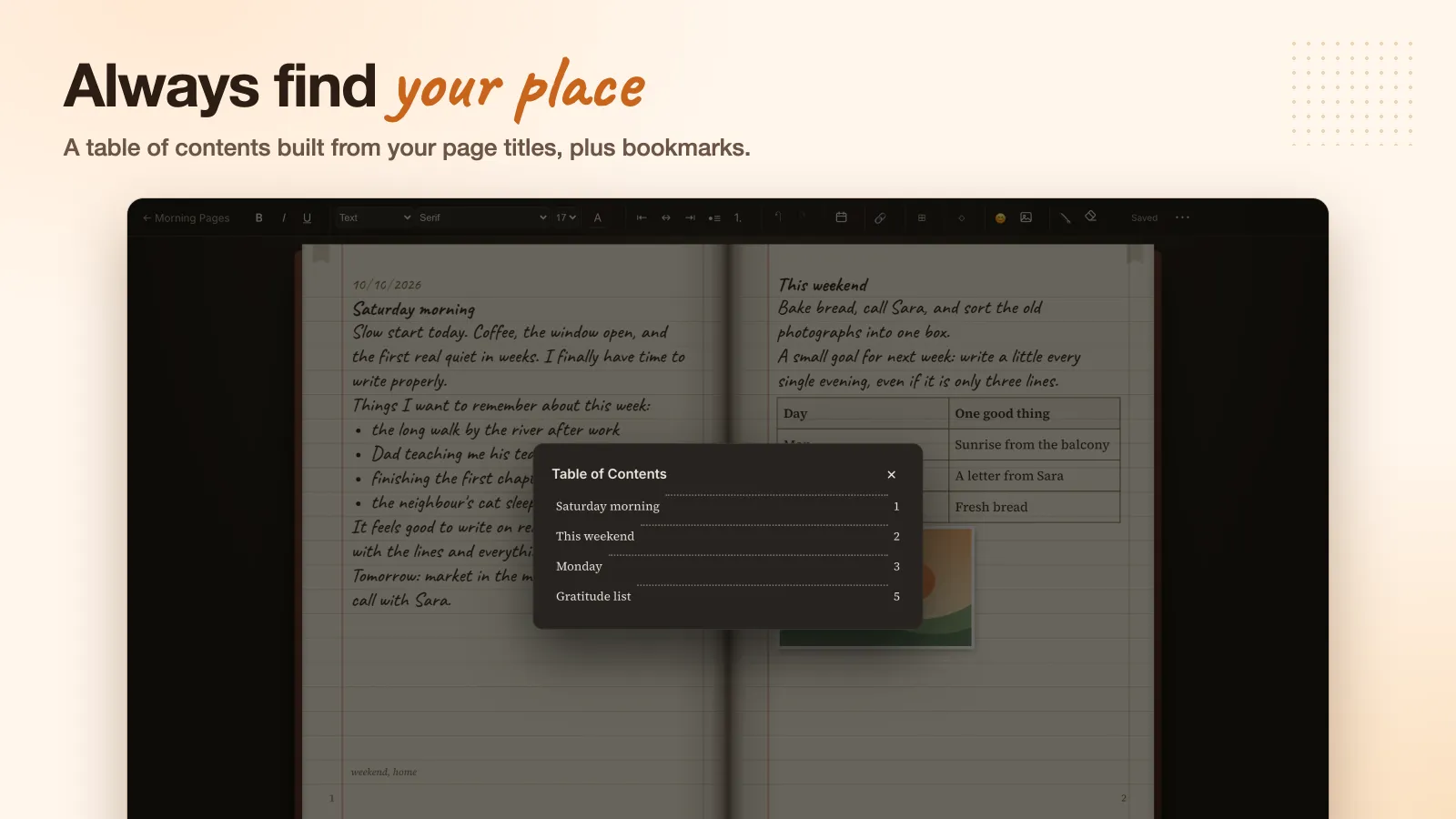
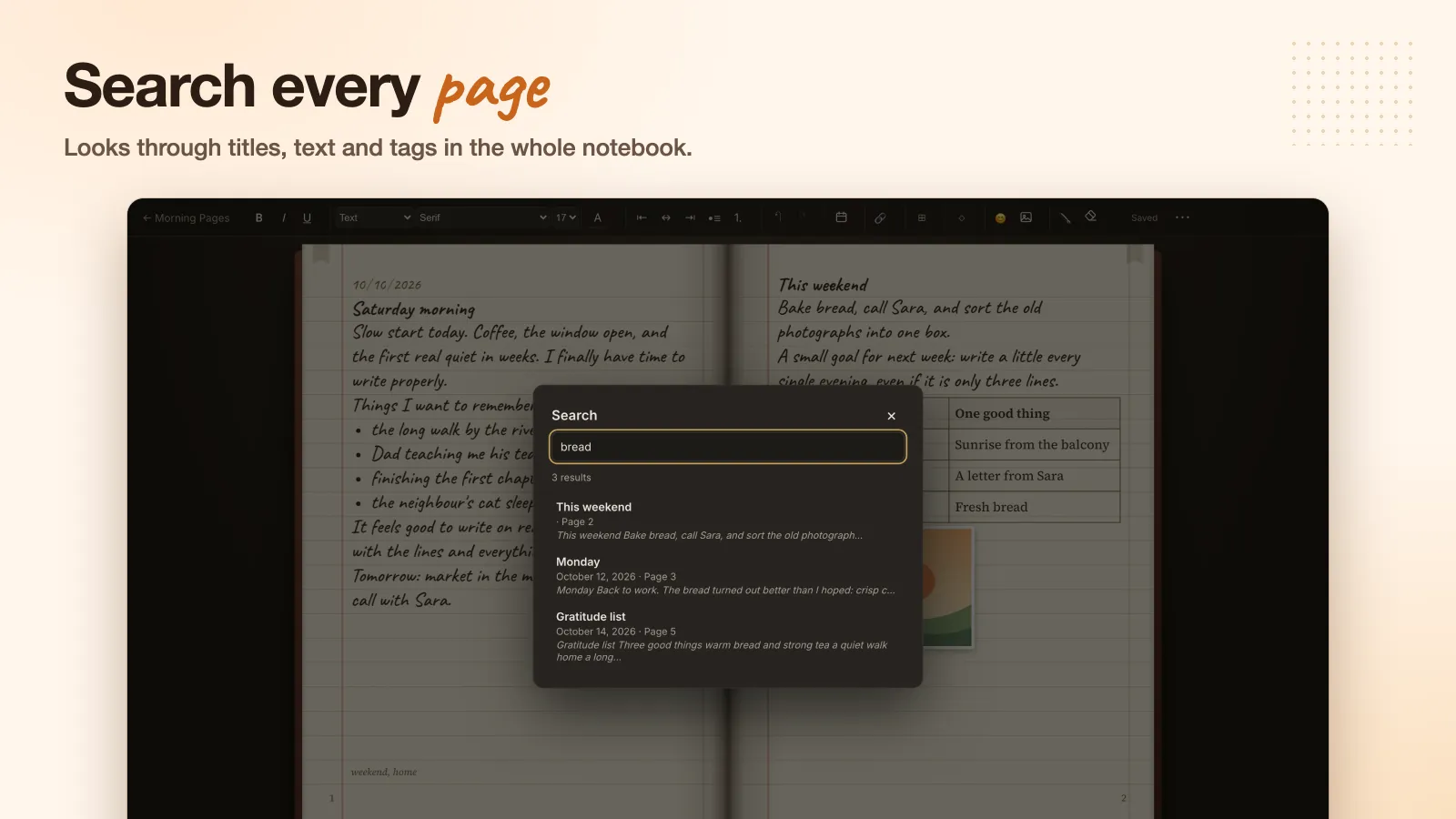
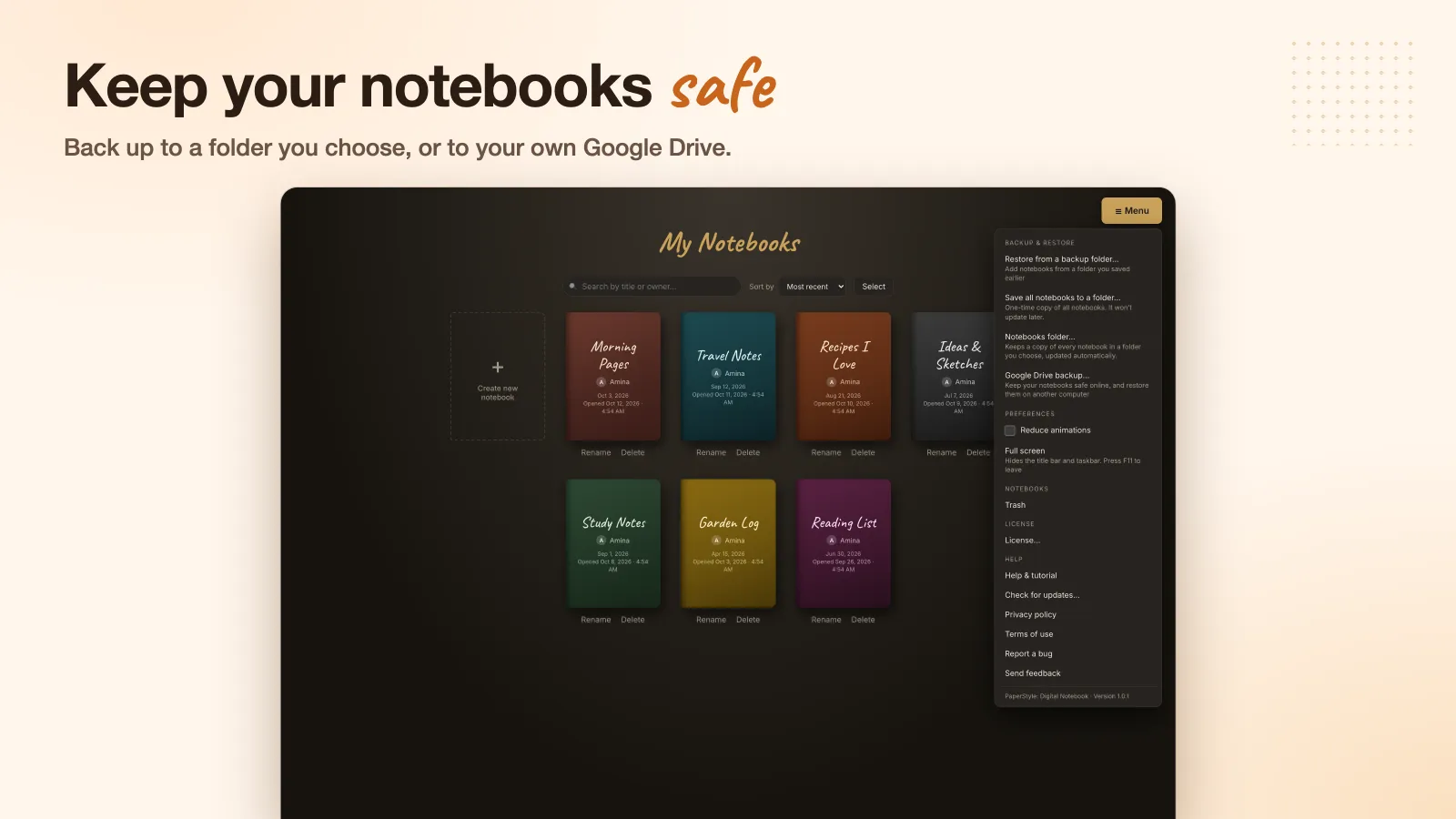
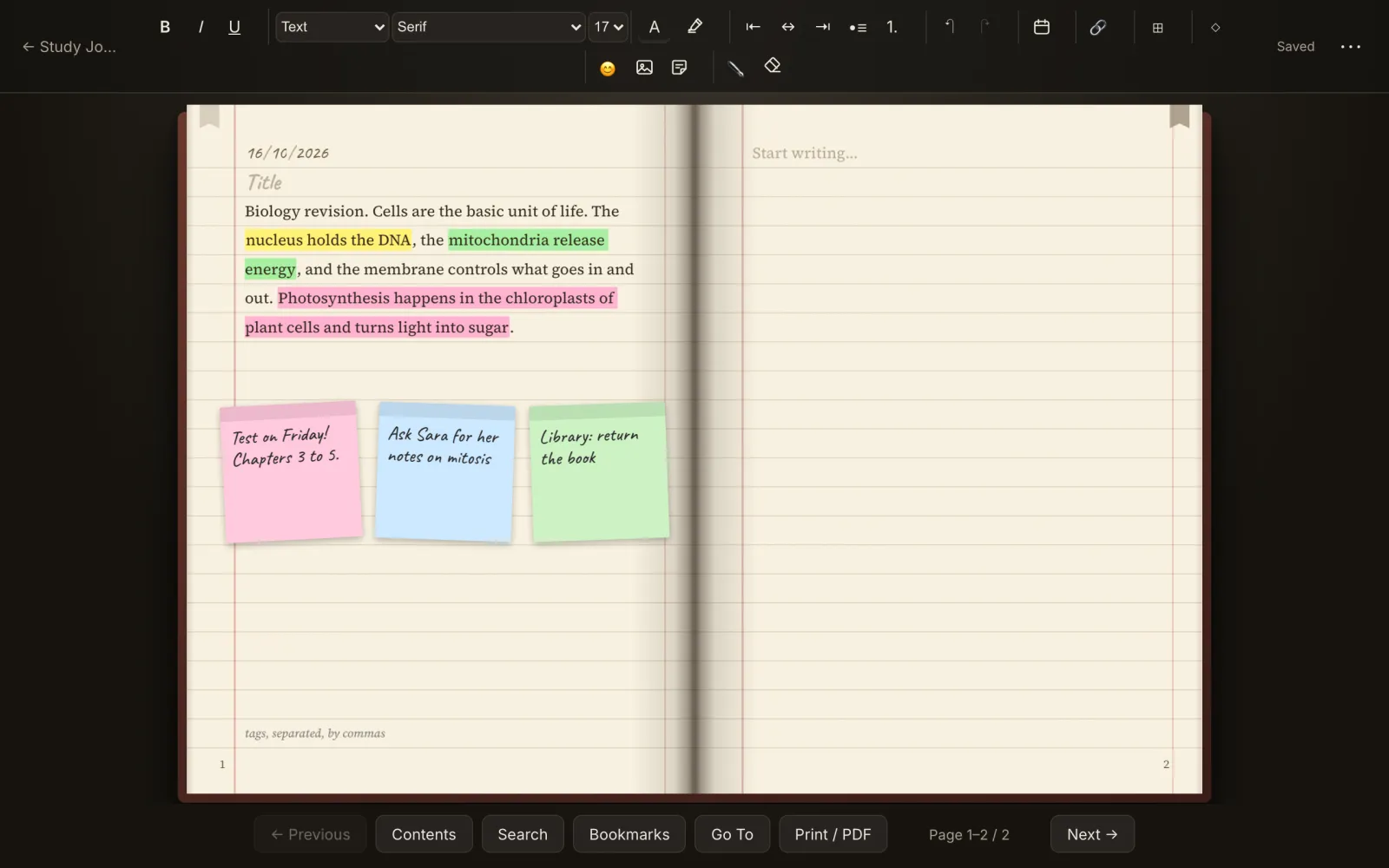
PaperStyle: Digital Notebook is a desktop app for Mac and Windows. You write in a notebook that looks and feels like paper. You write on real-looking pages, turn them like a real notebook, and add photos, tables, and shapes alongside your writing. Your notebooks stay on your own computer — we do not keep your data, and there is no account, no cloud, and no tracking — and you can back them up to a file, a folder, or your own Google Drive if you choose.
- Write on real-looking pages: pick one of nine cover colours (Classic, Minimal, Vintage, Forest, Ocean and more) and turn the ruled lines on or off
- Add photos, tables, and shapes, draw with a pen (still experimental), and bookmark pages
- Sticky notes: put a coloured note on the page and write on it. Five paper colours; the note grows as you write, up to a limit. Move it, resize it, turn it, or let your text flow around it.
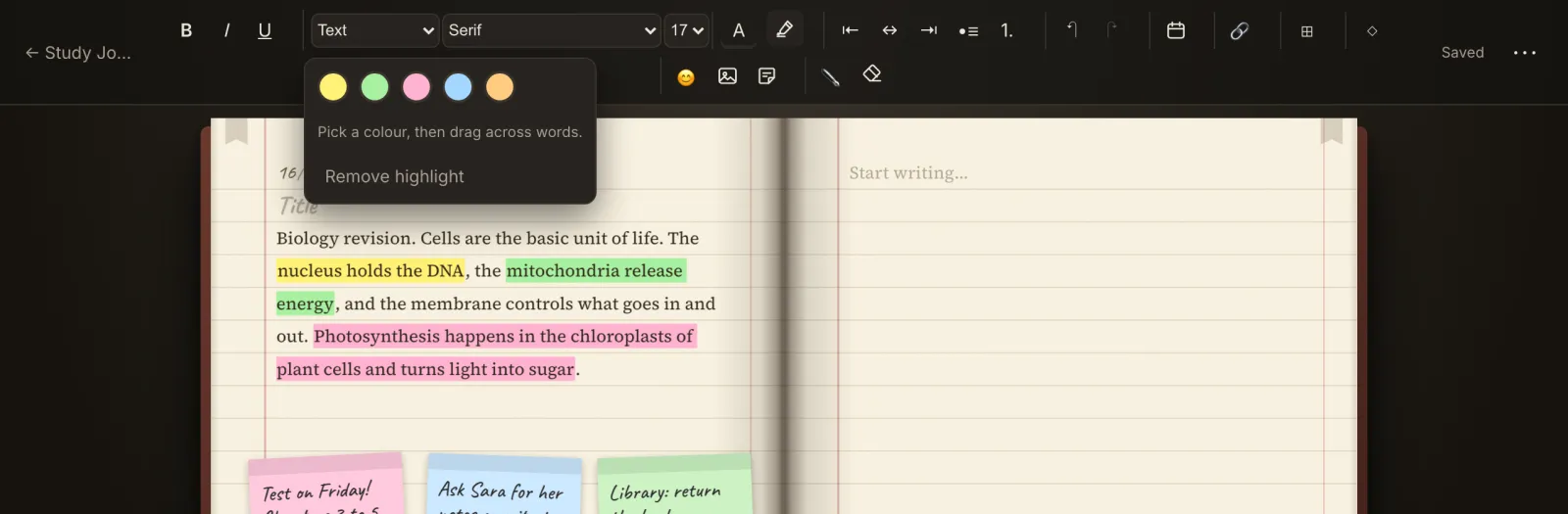
- Highlighter: pick one of five colours and drag across words to highlight them, like a marker pen.
- Emoji search, and a colour map for choosing text colours
- A cover picture for each notebook (optional)
- 57 fonts
- Turn pages like a real notebook: arrow keys, page corners, or a trackpad swipe
- Find anything: contents, search across the whole notebook, and go to any page
- Your notebooks stay on your computer. We do not keep your data. No account, no cloud, no tracking
- Back up to a file you control, to a folder, or to your own Google Drive if you choose
- Print or export to PDF
- Print or save a PDF as a booklet: two pages per sheet, in the order for folding, for printers that print both sides or one side only
macOS 11 or newer (Apple Silicon and Intel) and Windows 10 or 11 (64-bit) · Version 1.0.9
Your notebooks stay yours
Your notebooks stay on your computer. We do not keep your data: we never see, read or store your notebooks. No account, no cloud, no tracking. Read the privacy policy.
See it in action
Try it free for 14 days
Every person gets one 14-day free trial with every feature included. The first time you open PaperStyle it asks for your email address and mails you a code, and the trial starts when you type the code. The same email address cannot start a second free trial on another computer. No card needed. We never send news or offers.
Pricing
- Monthly: $2.99 / month
- Annual: $19.99 / year (about 44% less than paying monthly)
Payments are handled securely by Whop (prices in US dollars; Whop collects and remits sales tax where it applies). Cancel any time from your Whop account or the link in your receipt email; you keep access until the end of the period you paid for. 3-day refund, one per customer: see the refund policy.
Get PaperStyle: Digital Notebook
Each download is a zip file with the installer, a PDF install guide and short install videos. Windows: right-click the zip and choose Extract All, then open the Setup file inside.
Installer only: Mac (.dmg) · Windows (.exe)
Downloads include the free 14-day trial. No card needed.
How it works
- 1Download and install. A Mac or Windows warning may appear the first time: this is expected, and the steps are in Installing for the first time below.
- 2Open PaperStyle and type your email address, then the code we mail you. Your 14-day free trial starts. No card needed.
- 3Subscribe on Whop when you like. Then open PaperStyle and click "I already bought PaperStyle" on the first screen (or, inside the app, Menu > License... > "Activate your purchase by email"), and use the same email you bought with. You never type a license key.
Installing for the first time
Why you may see a warning: Mac and Windows show a warning the first time you open an app whose small independent maker has not yet bought the yearly "verified developer" certificate. PaperStyle: Digital Notebook is made by Amastran NET, and we have not bought one yet. The warning is about who the maker is, not about a problem in the app. Your notebooks stay on your own computer. Download only from this page or your Whop page.
On a Mac (about 2 minutes, once)
- Open the zip you downloaded (many browsers do this for you), then open the .dmg file inside the folder and drag PaperStyle Digital Notebook onto the Applications folder.
- Open Applications, then open PaperStyle Digital Notebook.
- A message says Apple could not verify the app. Click Done (not Move to Trash).
- Open the Apple menu > System Settings > Privacy & Security.
- Scroll down to Security. Next to the message about PaperStyle Digital Notebook, click Open Anyway.
- Type your Mac password (or use Touch ID), then click Open.
If you do not see Open Anyway, open the app once more and look again; the button only shows for about an hour after you try. Still stuck? Open Terminal (Command + Space, type Terminal, press Return), paste this line, press Return, then open the app again:
xattr -dr com.apple.quarantine "/Applications/PaperStyle Digital Notebook.app"On Windows (about 1 minute, once)
- Right-click the zip you downloaded and choose Extract All, then open the Setup file inside the folder. Do not run it from inside the zip.
- If you see "Windows protected your PC", click More info, then Run anyway.
- Follow the installer. PaperStyle: Digital Notebook opens when it is done.
Then start your free trial: open PaperStyle: Digital Notebook, type your email address, then the code we mail you. Already bought? On the first screen click "I already bought PaperStyle" (at the bottom), then the button that says "... by email", and use the email you bought with. Already inside the app: Menu > License... > "Activate your purchase by email".
How to install on a Mac
How to install on Windows
Questions
- My Mac or Windows says it cannot verify the app. Is it safe?
- Yes. Small independent makers get this warning until they buy the yearly verified-developer certificate. On a Mac click Done, then Apple menu > System Settings > Privacy & Security > Open Anyway. On Windows click More info > Run anyway. You only do it once. Download only from this page or your Whop page.
Questions: info@amastran.net